Moving from Excel (or Covidence extraction) to Evidence Table Builder
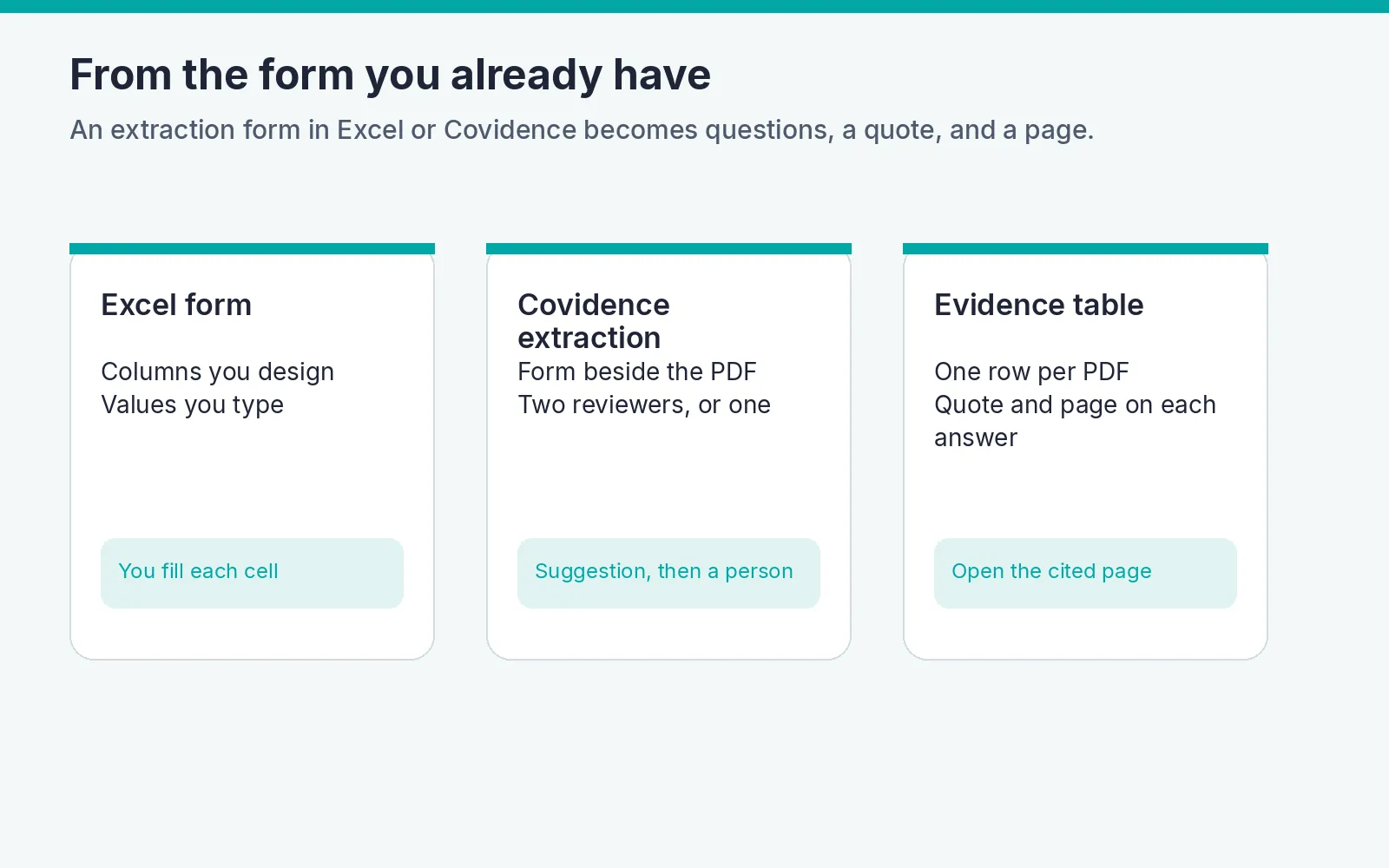
If the extraction form already lives in Excel, or the review already extracts in Covidence, Builder can take those questions and the included PDFs. You import or choose the questions, upload the papers, run them, open each answer on the cited page, then download the workbook. A Word briefing is a separate download after you review it.
This page describes the controls on Builder. It does not compare price, accuracy, or speed. Covidence cells below use Covidence's own public pages, checked on 31 October 2026.
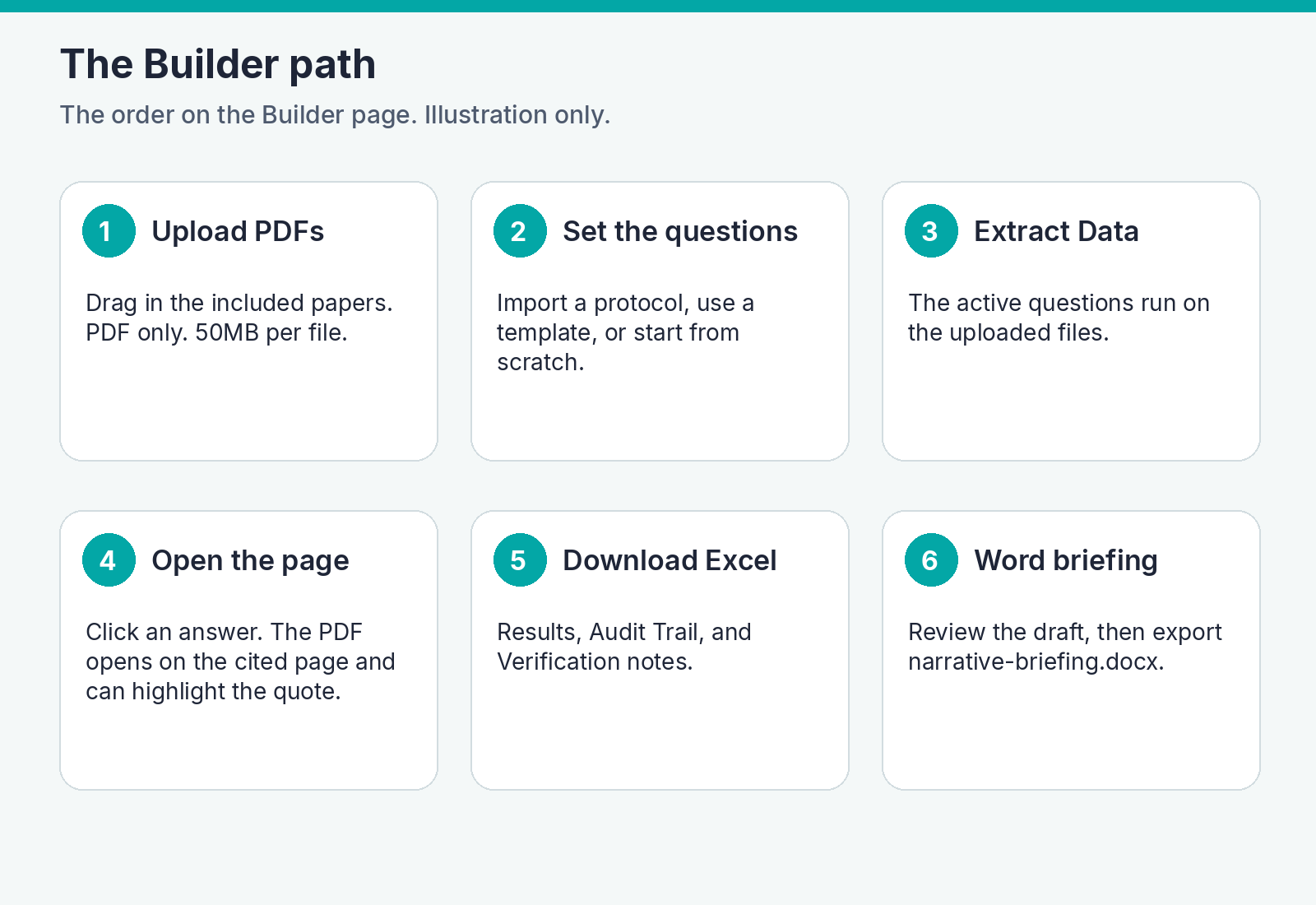
On the page, Upload PDFs sits above Extraction Setup. The sections below start with the questions, because that is the form you are bringing across, then cover the upload, the run, the page check, and the downloads.
What each tool already does
| Excel extraction form | Covidence extraction | Evidence Table Builder | |
|---|---|---|---|
| The form | Columns you design. Each cell is a value someone types or pastes. A quote and a page are extra columns you fill yourself. | Extraction 1 uses five sections: identification, methods, population, interventions, and outcomes. It is aimed at comparison groups and quantitative synthesis. Extraction 2 is a form you build from headings, text fields, single choice, checkboxes, and tables. | Starter Templates, HTA Templates, My Templates, questions you type, or questions imported from a protocol or pasted text. |
| The PDF while you work | The paper stays outside the sheet. | The PDF and the form sit side by side. You can zoom, rotate, and search the PDF. Extraction 1 auto-saves. Extraction 2 asks you to select Save. | After the run, click an answer or Review answers. The PDF opens on the cited page. |
| Quote and page | Whatever columns you added. | In Extraction 1, a suggestion can include a supporting quote when a DOI is available, and the extractor accepts or rejects it. The 16 August 2026 comparison table marks automatic suggestions for Extraction 1 only. The later Extraction 2 overview still describes a suggestion from an accessible full-text PDF, with a supporting quote, that the reviewer must accept or reject. Extraction 2 says those suggestions are never saved automatically. | Each answer stores up to two verbatim quotes, a page, and a location label. Those rows are the Audit Trail sheet. |
| Who checks | Whoever edits the file. The sheet has no consensus step of its own. | Extraction 1 can use two reviewers plus consensus, or one reviewer with no consensus step. Extraction 2 can assign two reviewers and flag conflicts, or one reviewer. In that single-reviewer mode, Extraction 2 then shows Begin checking. | One reviewer can leave the answer, mark it verified, or edit it. Builder stores that reviewer's name and the time. It does not keep a second extractor's form. |
| The download | The workbook you already have. | Extraction 1 exports to RevMan, CSV, and Excel (a sheet per study, or a sheet per section). Extraction 2 exports CSV: consensus data, or each reviewer's data. Opened in Excel, that CSV puts study IDs in rows and fields in columns. | results.xlsx with Results, Audit Trail, and Verification notes. Optional narrative-briefing.docx. |
| Screening and the rest of the review | A spreadsheet is a grid, not a screening workflow. | Covidence's public site presents reference import, independent dual screening, conflict resolution, quality assessment, and a PRISMA flow diagram in the same review. | Builder does not screen titles and abstracts. Quality assessment is a separate run. |
Stay in Excel when the form is short and the team already shares the workbook. Stay in Covidence when the team screens, resolves conflicts, and extracts with two reviewers in one review, or when Extraction 1's RevMan export is the destination. Use Builder when the included PDFs are ready and the remaining job is custom questions, a verbatim quote and page on each answer, and one Results sheet.
For screening, use Study Screener. For tools across the other stages of a review, see SystematicReviewTools.app. A wider fit guide is in Data extraction tools for systematic reviews.
Set up the questions
Open Builder. Extraction Setup is where the questions go. The walkthrough on that page lists three ways in: a template, start from scratch, or import questions.
Import questions from a protocol
The upload icon beside Extraction Setup is Import questions. Its tooltip reads "Import questions from a protocol".
The dialog is titled Import questions. It says to review the list before it is added, and that this does not use credits. It also shows how many questions are already on the template and how many the plan allows.
Upload a document accepts a PDF, Word file, text file, Markdown file, CSV, or Excel file, up to 8 MB. The helper text says a file replaces pasted text. Or paste text is the other input. The box placeholder is "Paste a protocol section…". A paste longer than 80,000 characters is refused, and the message asks for a shorter excerpt.
Find questions reads that source. You then see Suggested questions. Each row has a checkbox, editable question text (500 characters), and a source line. You can move a row up or down, Merge it with the next row, Split it, or remove it. Add question inserts a blank row. The count shows how many are selected and how many slots are still open. Confirm questions adds the selected rows.
A few notes can appear on that list:
- "These came from the document's list items. Edit them before adding." That is the fallback when the reader uses the document's own list items.
- "Only the first part of the document was read." A PDF is read up to 30 pages, and a very long document is cut before the list is built.
- "We couldn't find extraction questions in that text. Paste the data-extraction section, or try another file."
- When more questions were found than the plan allows, the note says how many it is showing and how many the plan allows per run.
A question that is already on the template, with the same text, is skipped. If you have not started a template yet, confirming saves one named Imported questions.
A Free run allows 10 questions and 20 PDFs. Pro and Power allow 100 questions and 100 PDFs in one run. The import list uses that same question cap.
Or use a template
Use a template opens three tabs: Starter Templates, HTA Templates, and My Templates.
Starter Templates:
- PICO Extraction
- Study Characteristics
- RCT Study Extraction
- Observational Study Extraction
- Outcomes and Results
- Safety and Adverse Events
- Diagnostic Test Accuracy
- Qualitative Study Extraction
- Custom Blank Template
HTA Templates:
- HTA clinical effectiveness
- HTA economic evaluation
- HTA safety
- HTA study characteristics and PICO
- HTA randomized trial effectiveness
- HTA relative effectiveness and PICO mapping
- HTA oncology survival and response
- HTA safety and adverse events
- HTA cost-utility evaluation
- HTA quality of life and utilities
- HTA budget impact
- HTA indirect comparisons
- HTA real-world evidence
- HTA diagnostic accuracy and devices
- HTA critical appraisal evidence
A starter or an HTA template stays unchanged when you first edit it. Builder saves a personal copy whose name ends in " - Edited", under My Templates. You can duplicate or archive a personal template. Extraction templates in Builder covers that lifecycle. A template with more fields than the plan allows does not load.
Or start from scratch
Start from scratch asks you to name the setup and add your own fields. If you leave the name blank, it is saved as Untitled Template. Once it has a field, it is stored in My Templates. Each question can be 500 characters. Ask for one variable in a field. How to write those questions goes further, and the quick start walks the same page with fewer side paths.
Upload the PDFs and run
Upload PDFs accepts a drag-and-drop or a click. The card says the maximum file size is 50MB. The picker accepts PDF files. A file over 50MB is rejected, and the message says it exceeds the 50MB size limit. If a non-PDF still reaches the check, the message says it is not a PDF file. The tooltip states how many PDFs the plan allows in one extraction.
Extract Data runs the active questions on the uploaded files. The button shows progress while the run is working.
Extract again is the label after a successful run. The confirm dialog is titled "Extract again?". Confirming runs the extraction again and replaces the preview on the page. The previous run stays in Builder History. Keep results leaves the current preview in place.
Open the answer on the page
The preview is one row per uploaded file and one column per question. Click an answer cell. The control is titled "Show this answer in the source PDF". Review answers opens the same panel for that file.
Each stored quote is its own control. The label includes the page, a location such as a section, table, or figure name when the paper has one, and the quote text. Choosing it moves the PDF to that page. A yellow highlight marks the quoted words when the page has selectable text. A table or figure citation scrolls to that region of the page.
The panel says what it could not mark:
- "No text layer on this page."
- "Opened the cited page. Highlight unavailable."
- "Scanned PDF. Highlighting this quote takes a little longer."
- "Couldn't highlight this quote on the scan."
- "No quote to highlight."
When the paper does not report the field, the preview shows "Not reported in paper". An unverified answer flagged ambiguous or needs_human_review shows Needs review.
Verify answer confirms the cell without changing the text. If you edit the text, the button is Save & verify. The statuses are Unverified, Verified, and Edited & verified. Download proof PDF, inside that panel, exports a copy of the source with the quotes highlighted. The highlights locate the quote. They are not themselves the verification. A person marks the answer verified. Audit trails describes the same record.
Builder stores one reviewer name and one reviewed-at time on the answer. It does not keep a second extractor's form beside the first, and it does not open a consensus column. Covidence does that comparison inside the extraction module, as the sources below describe. When two people compare answers themselves, the field-level adjudication ladder is written for human–human adjudication. Builder does not include that ladder as a screen.
The draft is there to be checked. Evidence Table Builder is aligned with RAISE guidance: a person decides what stands. That commitment is on the responsible AI page.
Download Excel and the Word briefing
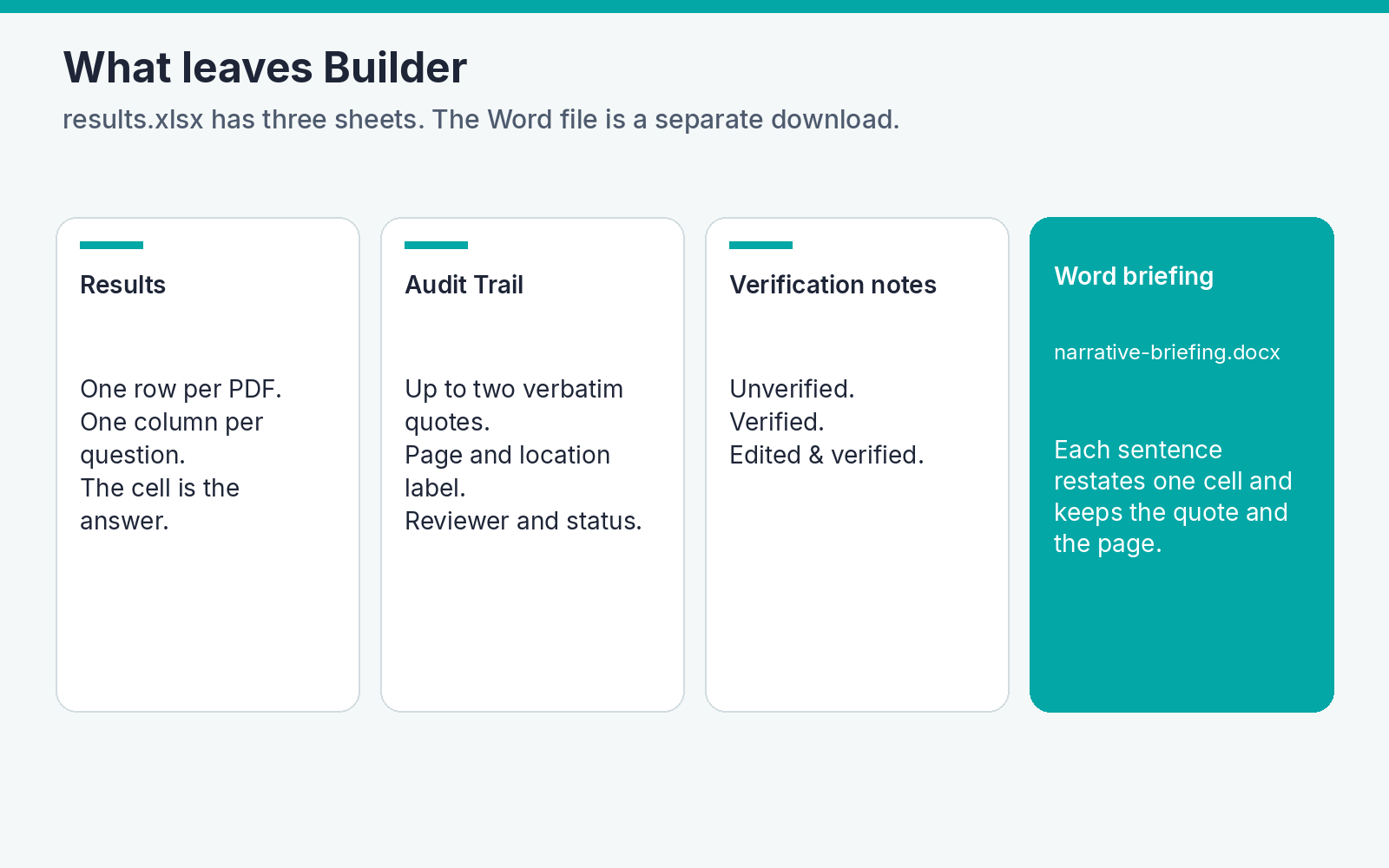
Download Excel saves results.xlsx with three sheets.
Results is one row per file and one column per question. The cell is the answer text, using the final answer after a reviewer edit.
Audit Trail is one row per quote. The sheet keeps at most two quotes for each field. A verbatim quote longer than 300 characters is shortened in the workbook. The columns include File Name, Section, Field, Question, AI Answer, Final Answer, Evidence #, Verbatim, Location Type, Location Label, Page, Confidence, not_found, ambiguous, needs_human_review, Verification status, Reviewer, Reviewer email, and Reviewed at.
Verification notes explains those statuses and what the yellow highlights mean. Unverified means a reviewer has not checked the answer against the PDF. Verified means a reviewer confirmed it and the final answer matches the original extraction. Edited & verified means a reviewer corrected the answer after checking the PDF.
Export narrative briefing opens Narrative briefing. The dialog says each sentence is written from the evidence table and keeps the verbatim quote and page from the audit trail. You choose an audience: Academic review, HTA or payer brief, or Internal brief. You can hide sections, edit a sentence, or omit one. Include the evidence table in the Word document is on unless you clear it. Cells with no answer, or with no verbatim quote and page, are listed under Withheld from the narrative and are not written as findings. Confirm and export downloads narrative-briefing.docx. If no cited sentence is left, the dialog says "No cited sentences are left to export."
The Word file restates cells that already have a quote and a page. It does not add findings that are absent from the table.
Quality assessment is a different run. How it works shows that workflow beside extraction. How to choose a quality assessment tool compares the profiles.
For account or run questions, contact via the contact page.
Related reading
- Quick Start Guide: Evidence Table Builder
- Extraction templates in Builder
- Audit trails
- Data extraction tools for systematic reviews
- Resolving dual-extraction disagreements
Sources checked (31 October 2026)
Covidence statements in the table and in the reviewer section come from these pages:
- Extraction 1 versus Extraction 2, last updated 16 August 2026, including the five Extraction 1 sections, Extraction 2 field types, DOI-based suggestions in Extraction 1, and the note that umbrella or prognosis reviews may suit a custom Extraction 2 form or another tool such as Excel: which template to use.
- Extraction 1 overview, last updated 7 July 2026, including the PDF beside the form, auto-save, supporting quotes on suggestions, reuse of a template from another Extraction 1 review, Cochrane Risk of Bias 1 or a custom quality-assessment template, and Excel exports as a sheet per study or a sheet per section: Extraction 1.
- Extraction 2 overview, last updated 27 August 2026, including two reviewers or one, Begin checking after single-reviewer extraction, suggestions from an accessible full-text PDF that a reviewer must accept or reject, consensus with conflicts flagged, and CSV export of consensus data or each reviewer's data. Opened in Excel, study IDs are rows and fields are columns: Extraction 2.
- Comparison and consensus in Extraction 1, last updated 16 August 2026. Dual-reviewer extraction compares the two forms. Single-reviewer extraction has no consensus step. The consensus reviewer is one of the two extractors: comparison and consensus.
- Whole-review stages, including reference import, independent dual screening, conflict resolution, and a PRISMA flow diagram: covidence.org.
The comparison table on that 16 August 2026 page marks dual reviewer extraction and single reviewer extraction for both Extraction 1 and Extraction 2. It marks automatic suggestions for Extraction 1 only, Excel export for Extraction 1 only, and CSV export for both. The suggestions mark conflicts with the Extraction 2 overview of 27 August 2026, which describes suggestions a reviewer must accept or reject. This article follows that later overview for Extraction 2 suggestions.
If the extraction form already lives in Excel, or the review already extracts in Covidence, Builder can take those questions and the included PDFs. You import or choose the questions, upload the papers, run them, open each answer on the cited page, then download the workbook. A Word briefing is a separate download after you review it.
This page describes the controls on Builder. It does not compare price, accuracy, or speed. Covidence cells below use Covidence's own public pages, checked on 31 October 2026.
On the page, Upload PDFs sits above Extraction Setup. The sections below start with the questions, because that is the form you are bringing across, then cover the upload, the run, the page check, and the downloads.
What each tool already does
| Excel extraction form | Covidence extraction | Evidence Table Builder | |
|---|---|---|---|
| The form | Columns you design. Each cell is a value someone types or pastes. A quote and a page are extra columns you fill yourself. | Extraction 1 uses five sections: identification, methods, population, interventions, and outcomes. It is aimed at comparison groups and quantitative synthesis. Extraction 2 is a form you build from headings, text fields, single choice, checkboxes, and tables. | Starter Templates, HTA Templates, My Templates, questions you type, or questions imported from a protocol or pasted text. |
| The PDF while you work | The paper stays outside the sheet. | The PDF and the form sit side by side. You can zoom, rotate, and search the PDF. Extraction 1 auto-saves. Extraction 2 asks you to select Save. | After the run, click an answer or Review answers. The PDF opens on the cited page. |
| Quote and page | Whatever columns you added. | In Extraction 1, a suggestion can include a supporting quote when a DOI is available, and the extractor accepts or rejects it. The 16 August 2026 comparison table marks automatic suggestions for Extraction 1 only. The later Extraction 2 overview still describes a suggestion from an accessible full-text PDF, with a supporting quote, that the reviewer must accept or reject. Extraction 2 says those suggestions are never saved automatically. | Each answer stores up to two verbatim quotes, a page, and a location label. Those rows are the Audit Trail sheet. |
| Who checks | Whoever edits the file. The sheet has no consensus step of its own. | Extraction 1 can use two reviewers plus consensus, or one reviewer with no consensus step. Extraction 2 can assign two reviewers and flag conflicts, or one reviewer. In that single-reviewer mode, Extraction 2 then shows Begin checking. | One reviewer can leave the answer, mark it verified, or edit it. Builder stores that reviewer's name and the time. It does not keep a second extractor's form. |
| The download | The workbook you already have. | Extraction 1 exports to RevMan, CSV, and Excel (a sheet per study, or a sheet per section). Extraction 2 exports CSV: consensus data, or each reviewer's data. Opened in Excel, that CSV puts study IDs in rows and fields in columns. | results.xlsx with Results, Audit Trail, and Verification notes. Optional narrative-briefing.docx. |
| Screening and the rest of the review | A spreadsheet is a grid, not a screening workflow. | Covidence's public site presents reference import, independent dual screening, conflict resolution, quality assessment, and a PRISMA flow diagram in the same review. | Builder does not screen titles and abstracts. Quality assessment is a separate run. |
Stay in Excel when the form is short and the team already shares the workbook. Stay in Covidence when the team screens, resolves conflicts, and extracts with two reviewers in one review, or when Extraction 1's RevMan export is the destination. Use Builder when the included PDFs are ready and the remaining job is custom questions, a verbatim quote and page on each answer, and one Results sheet.
For screening, use Study Screener. For tools across the other stages of a review, see SystematicReviewTools.app. A wider fit guide is in Data extraction tools for systematic reviews.
Set up the questions
Open Builder. Extraction Setup is where the questions go. The walkthrough on that page lists three ways in: a template, start from scratch, or import questions.
Import questions from a protocol
The upload icon beside Extraction Setup is Import questions. Its tooltip reads "Import questions from a protocol".
The dialog is titled Import questions. It says to review the list before it is added, and that this does not use credits. It also shows how many questions are already on the template and how many the plan allows.
Upload a document accepts a PDF, Word file, text file, Markdown file, CSV, or Excel file, up to 8 MB. The helper text says a file replaces pasted text. Or paste text is the other input. The box placeholder is "Paste a protocol section…". A paste longer than 80,000 characters is refused, and the message asks for a shorter excerpt.
Find questions reads that source. You then see Suggested questions. Each row has a checkbox, editable question text (500 characters), and a source line. You can move a row up or down, Merge it with the next row, Split it, or remove it. Add question inserts a blank row. The count shows how many are selected and how many slots are still open. Confirm questions adds the selected rows.
A few notes can appear on that list:
- "These came from the document's list items. Edit them before adding." That is the fallback when the reader uses the document's own list items.
- "Only the first part of the document was read." A PDF is read up to 30 pages, and a very long document is cut before the list is built.
- "We couldn't find extraction questions in that text. Paste the data-extraction section, or try another file."
- When more questions were found than the plan allows, the note says how many it is showing and how many the plan allows per run.
A question that is already on the template, with the same text, is skipped. If you have not started a template yet, confirming saves one named Imported questions.
A Free run allows 10 questions and 20 PDFs. Pro and Power allow 100 questions and 100 PDFs in one run. The import list uses that same question cap.
Or use a template
Use a template opens three tabs: Starter Templates, HTA Templates, and My Templates.
Starter Templates:
- PICO Extraction
- Study Characteristics
- RCT Study Extraction
- Observational Study Extraction
- Outcomes and Results
- Safety and Adverse Events
- Diagnostic Test Accuracy
- Qualitative Study Extraction
- Custom Blank Template
HTA Templates:
- HTA clinical effectiveness
- HTA economic evaluation
- HTA safety
- HTA study characteristics and PICO
- HTA randomized trial effectiveness
- HTA relative effectiveness and PICO mapping
- HTA oncology survival and response
- HTA safety and adverse events
- HTA cost-utility evaluation
- HTA quality of life and utilities
- HTA budget impact
- HTA indirect comparisons
- HTA real-world evidence
- HTA diagnostic accuracy and devices
- HTA critical appraisal evidence
A starter or an HTA template stays unchanged when you first edit it. Builder saves a personal copy whose name ends in " - Edited", under My Templates. You can duplicate or archive a personal template. Extraction templates in Builder covers that lifecycle. A template with more fields than the plan allows does not load.
Or start from scratch
Start from scratch asks you to name the setup and add your own fields. If you leave the name blank, it is saved as Untitled Template. Once it has a field, it is stored in My Templates. Each question can be 500 characters. Ask for one variable in a field. How to write those questions goes further, and the quick start walks the same page with fewer side paths.
Upload the PDFs and run
Upload PDFs accepts a drag-and-drop or a click. The card says the maximum file size is 50MB. The picker accepts PDF files. A file over 50MB is rejected, and the message says it exceeds the 50MB size limit. If a non-PDF still reaches the check, the message says it is not a PDF file. The tooltip states how many PDFs the plan allows in one extraction.
Extract Data runs the active questions on the uploaded files. The button shows progress while the run is working.
Extract again is the label after a successful run. The confirm dialog is titled "Extract again?". Confirming runs the extraction again and replaces the preview on the page. The previous run stays in Builder History. Keep results leaves the current preview in place.
Open the answer on the page
The preview is one row per uploaded file and one column per question. Click an answer cell. The control is titled "Show this answer in the source PDF". Review answers opens the same panel for that file.
Each stored quote is its own control. The label includes the page, a location such as a section, table, or figure name when the paper has one, and the quote text. Choosing it moves the PDF to that page. A yellow highlight marks the quoted words when the page has selectable text. A table or figure citation scrolls to that region of the page.
The panel says what it could not mark:
- "No text layer on this page."
- "Opened the cited page. Highlight unavailable."
- "Scanned PDF. Highlighting this quote takes a little longer."
- "Couldn't highlight this quote on the scan."
- "No quote to highlight."
When the paper does not report the field, the preview shows "Not reported in paper". An unverified answer flagged ambiguous or needs_human_review shows Needs review.
Verify answer confirms the cell without changing the text. If you edit the text, the button is Save & verify. The statuses are Unverified, Verified, and Edited & verified. Download proof PDF, inside that panel, exports a copy of the source with the quotes highlighted. The highlights locate the quote. They are not themselves the verification. A person marks the answer verified. Audit trails describes the same record.
Builder stores one reviewer name and one reviewed-at time on the answer. It does not keep a second extractor's form beside the first, and it does not open a consensus column. Covidence does that comparison inside the extraction module, as the sources below describe. When two people compare answers themselves, the field-level adjudication ladder is written for human–human adjudication. Builder does not include that ladder as a screen.
The draft is there to be checked. Evidence Table Builder is aligned with RAISE guidance: a person decides what stands. That commitment is on the responsible AI page.
Download Excel and the Word briefing
Download Excel saves results.xlsx with three sheets.
Results is one row per file and one column per question. The cell is the answer text, using the final answer after a reviewer edit.
Audit Trail is one row per quote. The sheet keeps at most two quotes for each field. A verbatim quote longer than 300 characters is shortened in the workbook. The columns include File Name, Section, Field, Question, AI Answer, Final Answer, Evidence #, Verbatim, Location Type, Location Label, Page, Confidence, not_found, ambiguous, needs_human_review, Verification status, Reviewer, Reviewer email, and Reviewed at.
Verification notes explains those statuses and what the yellow highlights mean. Unverified means a reviewer has not checked the answer against the PDF. Verified means a reviewer confirmed it and the final answer matches the original extraction. Edited & verified means a reviewer corrected the answer after checking the PDF.
Export narrative briefing opens Narrative briefing. The dialog says each sentence is written from the evidence table and keeps the verbatim quote and page from the audit trail. You choose an audience: Academic review, HTA or payer brief, or Internal brief. You can hide sections, edit a sentence, or omit one. Include the evidence table in the Word document is on unless you clear it. Cells with no answer, or with no verbatim quote and page, are listed under Withheld from the narrative and are not written as findings. Confirm and export downloads narrative-briefing.docx. If no cited sentence is left, the dialog says "No cited sentences are left to export."
The Word file restates cells that already have a quote and a page. It does not add findings that are absent from the table.
Quality assessment is a different run. How it works shows that workflow beside extraction. How to choose a quality assessment tool compares the profiles.
For account or run questions, contact via the contact page.
Related reading
- Quick Start Guide: Evidence Table Builder
- Extraction templates in Builder
- Audit trails
- Data extraction tools for systematic reviews
- Resolving dual-extraction disagreements
Sources checked (31 October 2026)
Covidence statements in the table and in the reviewer section come from these pages:
- Extraction 1 versus Extraction 2, last updated 16 August 2026, including the five Extraction 1 sections, Extraction 2 field types, DOI-based suggestions in Extraction 1, and the note that umbrella or prognosis reviews may suit a custom Extraction 2 form or another tool such as Excel: which template to use.
- Extraction 1 overview, last updated 7 July 2026, including the PDF beside the form, auto-save, supporting quotes on suggestions, reuse of a template from another Extraction 1 review, Cochrane Risk of Bias 1 or a custom quality-assessment template, and Excel exports as a sheet per study or a sheet per section: Extraction 1.
- Extraction 2 overview, last updated 27 August 2026, including two reviewers or one, Begin checking after single-reviewer extraction, suggestions from an accessible full-text PDF that a reviewer must accept or reject, consensus with conflicts flagged, and CSV export of consensus data or each reviewer's data. Opened in Excel, study IDs are rows and fields are columns: Extraction 2.
- Comparison and consensus in Extraction 1, last updated 16 August 2026. Dual-reviewer extraction compares the two forms. Single-reviewer extraction has no consensus step. The consensus reviewer is one of the two extractors: comparison and consensus.
- Whole-review stages, including reference import, independent dual screening, conflict resolution, and a PRISMA flow diagram: covidence.org.
The comparison table on that 16 August 2026 page marks dual reviewer extraction and single reviewer extraction for both Extraction 1 and Extraction 2. It marks automatic suggestions for Extraction 1 only, Excel export for Extraction 1 only, and CSV export for both. The suggestions mark conflicts with the Extraction 2 overview of 27 August 2026, which describes suggestions a reviewer must accept or reject. This article follows that later overview for Extraction 2 suggestions.
Tags:

About the Author
Connect on LinkedInGeorge Burchell
George Burchell is a specialist in systematic literature reviews and scientific evidence synthesis with significant expertise in integrating advanced AI technologies and automation tools into the research process. With over four years of consulting and practical experience, he has developed and led multiple projects focused on accelerating and refining the workflow for systematic reviews within medical and scientific research.